


Plusnet Protect User Guide
Find out how to use all the features of our Plusnet Protect powered by McAfee security package.
Virus and Spyware Protection
Depending on your security needs, you can choose from many scan options in Anti-Virus and Anti-Spyware, including quick scan, full scan, custom scan, and manual scan. For all scan types, except for manual scans, you select the type of scan from the Home Page. When the scan is finished, Plusnet Protect prompts you to handle any threats that it could not handle automatically.
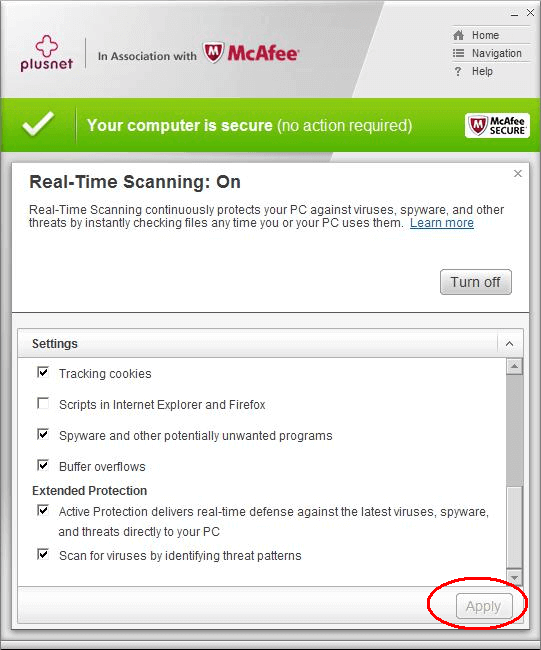
Real-time scanning options define what Plusnet Protect looks for during a real-time scan, as well as the locations and file types it scans. Options include scanning for unknown viruses and tracking cookies, and buffer overflow protection.
You can set up real-time scanning to check network drives and scan for viruses by identifying threat patterns. You can even connect to McAfee's online community to incorporate the most current information on potentially unwanted programs and emerging threats.
- On the Home Page, click Real-Time Scanning

- Click Real-Time Scanning settings

- Under File Types, specify the file types you want to scan each time they are accessed

- To detect suspicious activity at all potential points of entry - Select All files
- To scan for viruses in program and document files - Select Programs and documents
- Under Locations, specify the locations you want to scan each time they are accessed

- To detect activity from viruses and other threats in the email you send and receive - Select Email attachments
- To detect activity from viruses and other threats in the instant messaging attachments you send and receive - Select Instant messaging attachments
- To detect activity from viruses and other threats on your network drives, as well as your local hard drives - Select Network drives
- Under Threats, specify the threat types you want to scan for in files each time the files are accessed

- To detect tracking cookies that monitor your web browsing habits
- To detect spyware and other potentially unwanted programs
- To detect malicious scripts running in Internet Explorer and Firefox
- To protect your PC from buffer overflows
- Under Extended Protection, specify the additional protection options you would like to include in real-time scanning

- Get immediate protection against emerging threats - Select "Connect to McAfee's online community" to defend against emerging threats
- Detect unknown viruses - Select Scan for viruses by identifying threat patterns
- Click Apply to save your settings. Use caution when changing real-time scanning options from the default settings, because it can make your PC vulnerable to certain threats.
By default, Plusnet Protect performs a scheduled scan at 4:00 A.M. once a week, but you can modify the schedule to fit your needs. An option to use a minimal amount of your PC's processing power is enabled by default, but you can disable it to increase the speed of the scheduled scan. Another option allows you to conserve battery power if your PC is not plugged in at the time of a scheduled scan.
A scheduled scan thoroughly checks all drives on your PC.
- Schedule automatic scans - A scheduled scan checks your PC for viruses and other threats on a regular basis. Scheduled scans are essential to ensuring the continuous health of your PC
- Turn off scheduled scanning - Occasionally you might want to turn off scheduled scanning, perhaps to free up your PC's system resources. However, turning off scheduled scanning can leave your PC exposed to threats. If you turn off scheduled scanning, we recommend that you turn it back on as soon as possible
- Turn on scheduled scanning - Turn on scheduled scanning to ensure the continued security of your PC, and to reduce the need for manual scans
Web and Email Protection
Firewall serves as a defensive barrier between the Internet and your PC, allowing you to control what comes in and what goes out. The functionality of Firewall is tailored to monitor Internet traffic for suspicious activity, and to provide effective protection without disrupting your activities.
Starting Firewall
Firewall protects your PC from intrusion and unwanted network traffic. Smart Advice is automatically enabled, helping you handle alerts, and you can manage access for known and unknown programs. By default, Firewall is set to allow outgoing access for programs.

If Firewall is not active, the Home Page shows the status of any other firewall protection you might have, including the standard Windows firewall.

Working with alerts
Alerts appear in the bottom right corner of your screen to let you know when security events occur on your PC. An alert provides information about an event, as well as recommendations and options for resolving security problems.
Setting up Firewall protection
Firewall lets you choose how to manage your security, including how to respond to threats and alerts. Firewall offers Smart Advice on granting Internet access to programs in the form of alerts. You can set up Firewall to apply those recommendations automatically, or to let you view them first, before deciding whether to apply them. Security levels help you customise your protection to suit your needs. When you install Firewall, by default it allows programs on your PC to send information over the Internet. However, Firewall offers other security levels, so that you can be more or less restrictive when granting Internet access.
Managing Firewall security levels Part of choosing the security level that works best for you is deciding how you want to manage and respond to alerts. Alerts appear when Firewall detects intrusion attempts, unwanted network traffic, or suspicious activity from incoming or outgoing Internet connections. By default, the security level is set to Outgoing Access, which allows programs only to send information.

Customising Firewall security
Firewall allows you to control program activities that can compromise the security of your PC. You can control how your PC handles programs trying to access the Internet on startup, how it communicates with other PCs, how it handles intrusion attempts from hackers, and even how it reports on your security vulnerabilities.


Locking and restoring Firewall
You can lock Firewall instantly with the Lockdown security level, which blocks all incoming and outgoing traffic between your PC and the Internet. Lockdown has the same effect as physically disconnecting the network cables on your PC: it blocks all incoming and outgoing network connections, including access to websites, email, and security updates. You might need to do this if you suspect that a program on your PC is sending or receiving malicious data and you want to block open ports to protect other PCs on your network. You can restore Internet access to your PC by selecting any of the other security levels (Full Access, Outgoing Access, Monitored Access, and Stealth).
Managing programs and their permissions
Many programs attempt to gain incoming and outgoing access to the Internet. You need to decide which programs you want to allow that access.
Managing PC connections
You can configure Firewall to manage specific remote connections to your PC.
About system services
To work properly, certain programs (including web servers and file-sharing server programs) must accept unsolicited connections from other PCs through designated system service ports. Typically, Firewall closes these system service ports because they make your PC more vulnerable to attacks. To accept connections from remote PCs, however, the system service ports must be open.
Setting up system service ports
You can set up system service ports to allow or block remote network access to a service on your PC. These ports can be opened or closed for PCs that are listed as Home, Work, or Public in your Connections list.

Event Logging
Firewall allows you to enable or disable event logging. When it's enabled, you can also specify which event types to log. With event logging, you can view recent incoming events, outgoing events, and intrusion events. Firewall records an event each time an Internet connection attempt is blocked.

Viewing HackerWatch statistics
Firewall uses McAfee's security website, HackerWatch to provide up-to-date information about programs and global Internet activity. HackerWatch is integrated with Firewall, allowing individual users to pool information through automatic event submission, which helps prevent hacking attempts, intrusion, and unwanted traffic. By combining this data, automated tools scan for offending PCs, which can be identified by the Internet traffic they produce. When an offending PC is identified, its Internet service provider is notified so that they can respond by removing access.
SiteAdvisor is a plugin for Internet Explorer and Firefox.
Each day, McAfee visits websites and tests them against a list of security threats. Each site is then rated for safety, based on those tests.
SiteAdvisor shows you the rating for the site you are visiting, or allows you to request a test, or even give your own feedback.
From pop-up ads to Trojan viruses, SiteAdvisor spots the dangers and helps keep you and your family safe online.
SiteAdvisor colours
The McAfee SiteAdvisor icon will be coloured depending on the rating of the site you are viewing, as follows:
- Green - Safe, a very low risk of a problem with this site
- Yellow - Use caution - there may be a minor risk
- Red - Serious risk of issues
- Grey - McAfee haven't rated the site yet
Home Network
My Home Network software provides the tools you need to control the connections between your PC and other PCs or devices. It also gives you an overview of your home network in an easy-to-read map. From this network map, you can manage protection for each PC or device on your network, and fix any reported security vulnerabilities.

My Home Network provides the tools you need to create a home network, and manage the PCs and devices connected to it.
Network map - See a map of the PCs and devices connected to your network, each of which is represented by an icon that shows what kind of device it is and, if Plusnet Protect is installed, its protection status. When you make changes to your network, My Home Network recognises those changes and shows them the next time you refresh the network map. You can remove components of your network from the network map as needed, and view details for any of the devices on the map.

Remote management - Manage the protection of the PCs that make up your home network which have Plusnet Protect. You can invite a remote PC to trust the network, monitor a trusted PC's protection status, and fix issues for a remote PC on the network.

Network defence - Let My Home Network monitor your network and notify you when friends or intruders connect.
Here are some of the terms commonly used in My Home Network:
- Remote PC - Any PC connected to the home network, other than the PC where you are working
- Local PC - The PC where you are working
- Trusted PC - A PC that has Plusnet Protect installed, that you have marked as trusted on your home network. Only PCs with current McAfee protection can be trusted
- Untrusted PC - A PC that is connected to the home network, that you have not yet marked as trusted or as an intruder
- Intruder - An unrecognised or untrusted PC or device that you have marked as an intruder on the home network
Alerts appear in the bottom right corner of your screen to let you know when security events occur on your PC. An alert provides information about an event, as well as recommendations and options for resolving security problems. Since alerts are an important part of Plusnet Protect, you cannot disable them. You can control which alerts appear (for example, you can hide informational alerts) and set up basic alert behaviour like whether you want to hear a sound with the alert, or if the McAfee logo screen appears on startup.
Alert type Description
Red - A red alert is a critical notification that requires you to respond and resolve the issue. Some red alerts correspond to the "at risk" protection status on the Home Page. After you fix the problem, the protection status returns to "secure". For example, if Firewall is turned off, the protection status turns to "at risk." After you turn Firewall on, the protection status is "secure".
Yellow - A yellow alert is a notification of an event that might affect your protection status. You could receive a yellow alert when a PC or device that you've marked as an intruder connects to your network.
Grey - A grey alert, also known as an informational alert, is used for notifying about a non-critical security related event. You might receive a grey alert when a PC or device connects to your network. Grey alerts close automatically after 15 seconds.
To set up a home network, you must first trust the network. All of the PCs and devices you use can be added to the network, and viewed from the network map. When you make changes to your network, the network map recognises those changes and shows them automatically.
You can manage protection for each PC or device on your network, and fix any reported security vulnerabilities. Plusnet Protect also monitors your network for intruders (unrecognised or untrusted PCs or devices) that try to connect to it.
To make file and printer sharing work in Windows, you must open the associated system service port in Firewall. To learn how to open system service ports, read Set up a new system service port.
When you connect a PC to the network, Plusnet Protect checks what the router attributes are, and whether the PC is connected to the Internet. Plusnet Protect also determines if any PCs or devices are already on the network. If Plusnet Protect doesn't find any existing members on the network, it assumes that the PC you're connecting is the first PC on the network.
Access the network map
Open the network map to see a graphical representation of the PCs and devices that make up your home network. From the network map, you can manage protection for each PC or device on your network, and fix any reported security vulnerabilities.
- On the Home Page, click Home Network

- Click My Home Network. If you haven't already trusted the network, you are prompted to do so the first time that you access the network map

Refresh the network map
When you make changes to your network (for example, by adding a PC), you should be able to see those changes immediately on the network map. You can manage protection for the new PC or device as soon as it is added, and fix any reported security vulnerabilities. You can also prompt Plusnet Protect to check for changes to the network by refreshing the network map, if you do not see a change you're expecting.
- On the Home Page, click Home Network
- Click My Home Network
- On the left side of the network map, click the home network icon

- Click About This Network
- Click Refresh list
Hide offline PCs and devices in the network map If a PC or device is offline, you can hide it on the network map. Hiding offline PCs and devices allows you to see only the active PCs and devices on your network that you can manage in real time. Hidden PCs and devices reappear on the network map automatically when they try to reconnect.
- On the Home Page, click Home Network
- Click My Home Network
- Select the PC or device you want to hide
- Under the PC or device's details, click Remove from Network Map
View PC or device details You can view detailed information about any PC or device on your home network. You can use the information to identify PCs and devices connected to your network, and decide whether to include them on your network. You can also use the information to determine a PC's security status, and diagnose protection problems.
- On the Home Page, click Home Network
- Click My Home Network
- Select a PC or device on the network map to see its name, its protection status, and other information required to manage it
Edit a PC or device name
You can view detailed information about any trusted PC or edit details of devices on your network, then rename those that are not trusted.
Renaming PCs helps you personalise your network map, and quickly identify the PCs you're managing. You can also include descriptive information about the PC in its name, to make identifying it easy for other users. For example, a PC that's used by everyone in a home might be called "Family PC", or when you specify a device as a gaming device, the network map represents it with an image of a game controller.
- On the Home Page, click Home Network
- Click My Home Network
- Select the PC that you want to rename or device you want to edit details for
- Click Edit Name (for a PC) or Edit Details (for a device)
- In the Name field, type the new name
- If you're editing a device pull down the Device Type menu, and select the device type for your device
- Click Save
Stop trusting the home network
If you want to leave your home network for any reason, for example if you join a home network by mistake, you can use the network map to do this. Leaving a network ensures that none of the users connected to that network can view information on or establish a connection with your PC.
- On the Home Page, click Home Network
- Click My Home Network
- On the left side of the network map, click the home network icon
- Click About This Network
- Under the list of devices connected to the home network, click Don't trust network
When new PCs and devices connect to the home network for the first time, they all enter in an untrusted state. You'll be able to mark each device as trusted or as an intruder.
Trusted PCs allow other PCs on the network to manage their Plusnet Protect status, and to fix their security issues remotely. Typically, an untrusted PC is a guest PC that needs to access other network features, like sending files or sharing printers. File and printer sharing functions are handled outside of My Home Network. To learn more, read File and Printer Sharing.
Trust a PC on the home network
If a new PC with Plusnet Protect installed connects to the home network, you can invite it to become a trusted member of the network. You can do the same with protected PCs that are already on the network in an untrusted state.
Trusting a new PC on the network involves sending a trust invitation and setting a password. After you enter the password on the PC that sends the invitation, you must enter it again within 20 minutes on the PC that receives the invitation. Once a PC is trusted, you can view its security status, subscription details, and when it was last updated. You can also manage the PC's protection status, and fix its security issues remotely.
- On the Home Page, click Home Network
- Click My Home Network
- Click the icon for an untrusted PC
- Under the PC's details, click Mark as Trusted
- When prompted, type a password, then click Submit to send a trust invitation to the PC
- Go to the PC you want to trust and view the trust invitation alert
- From the alert, click Open Network Map, type the same password you set on the administrative PC, then click Submit
- When you have successfully established trust on both PCs, they appear to each other as trusted on the network map, with a green McAfee shield on each PC's icon
Accept a trust invitation
When establishing a new home network, you might receive a trust invitation from a user on another PC, or from you own account on another PC. If you recognise and trust both the PC and the user, it is safe to accept the invitation. Once a PC is trusted, you can view its security status, subscription details, and when it was last updated. You can also manage the trusted PC's protection status, and fix its security issues remotely.
When you receive a trust invitation alert, look for the name of the PC sending the invitation, then your response to the invitation depends on whether you recognise the PC.
If you recognise the PC that sent the invitation.
- If you are not yet part of its network, click Trust network

- Click Open Network Map
- Type the password in the Password field
- Click Submit
Reject a trust invitation
If you receive a trust invitation from a user on another PC and you do not recognise and trust both the PC and the user, reject the invitation.
- From the trust invitation, click Reject
Remove trust
If you mark a PC as trusted by mistake, or if you change your mind, you can remove trust from it. When you do, you can no longer view that PC's security status, manage its protection status, or fix its security issues remotely.
- On the Home Page, click Home Network
- Click My Home Network
- Click the icon of a trusted PC

- Under the trusted PC's details, click Remove Trust. Note: the Remove Trust button is available only to PCs with administrative permissions
Mark as intruder
Mark a PC or device on your network as an intruder if you don't recognise it, or if you believe it is a potential threat. Marking a PC or device as an intruder means it is automatically blocked from accessing your PC by Firewall. My Home Network notifies you when it reconnects to your network.
- On the Home Page, click Home Network
- Click My Home Network
- Click the icon of the PC or device you want to mark as an intruder
- Under the details of the PC or device, click Mark as Intruder
Unmark as intruder
If you mark a network PC or device as an intruder by mistake, you can remove the designation of intruder. Make sure that you recognise the device as safe before you change its designation. Unmarking a PC or device as an intruder means that it regains access to features, like sending files or sharing printers.
- On the Home Page, click Home Network
- Click My Home Network
- Click the icon of the PC or device marked as an intruder, that you want to unmark as an intruder
- Under the details of the PC or device, click Unmark as Intruder
After you set up a home network, you can manage its PCs and devices remotely. Remote management allows you to handle many tasks and problems from a single PC - you don't need to be sitting at the PC that requires your attention. The kinds of tasks you can do remotely include managing the security status of a PC on the network, and fixing security vulnerabilities. You can also set automatic notifications for a PC or device so that whenever it attempts to enter your network, Plusnet Protect lets you know.
Set up automatic notifications
You can choose to be notified when any PC or device on your network comes online. Automatic notifications let you know about the activity of PCs and devices controlled by other users, and their availability when they connect to the network.
- On the Home Page, click Home Network
- Click My Home Network
- Click the icon of a PC or device to set up its notifications
- Under the details of the PC or device, click Notification Settings
- Select Notify me when this PC or device comes online. If a device that is marked as an intruder tries to come online, Plusnet Protect notifies you automatically. No setup is required
Install Plusnet Protect on remote PCs
If a PC on your network is not using a current version of Plusnet Protect, you cannot manage its protection status remotely. You might receive a notification that one or more PCs on your network are not protected, but you can also use the network map to see the unprotected PCs on your network. A PC without current protection installed does not have a McAfee shield in its icon.
To manage the security status of a PC remotely, you must install a current version of Plusnet Protect.
- On the PC that you want to manage remotely, open a browser window and go to the Plusnet Protect powered by McAfee download page in Manage Account
- If you've got Plusnet Protect as an Add-On for your service you'll be able to download and install the software for each PC you want it on. Simply follow the on-screen instructions to do this
If you trust another PC on a network, you can manage the Plusnet Protect status of that PC, and fix reported security vulnerabilities remotely. For example, if the protection status of a trusted PC indicates that its Firewall is off, you can turn its Firewall back on remotely.
With My Home Network, you can fix most security vulnerabilities on trusted PCs, and do it remotely. You don't need to be sitting at the PC that requires your attention.
You cannot fix problems remotely on a PC without McAfee protection. When you select the icon for an unprotected PC on the network map, you can follow the link that appears for full instructions on how to install Plusnet Protect software to it.
- On the Home Page, click Home Network
- Click My Home Network
- Click the icon for a PC or device
- Review the security vulnerabilities that were detected, which appear above the PC's details
- Click Fix issues to restore the PC to a secure state. My Home Network can repair most reported issues remotely, but some security vulnerabilities might require manual intervention. In this case, My Home Network fixes the issues that can be repaired remotely, then prompts you to fix the remaining issues locally. You do this by logging on to the Home Page on the vulnerable PC and following the recommendations provided. In some cases, the suggested solution is to install the latest version of Plusnet Protect on the remote PC
Parental Controls
With Parental Controls you can ensure that your children view only age-appropriate websites on a schedule that lets you determine when they can access the web, and when they cannot.
- Age-appropriate website filtering - Make sure that your child can view only age-appropriate websites, and review or change the type of content available to your children
- Safe searching - Ensure that the safety filters of some popular search engines are turned on to automatically exclude potentially inappropriate items from your child's search results
- Filter list - Allow or block specific website addresses
- Web browsing schedule - Limit the amount of time your child spends on the web
- Password protected settings - Protect the Parental Controls settings with a password, so that only you can make changes to the protection settings you assign to your children
Before you can protect your children, you must create an administrator. The administrator is responsible for choosing protection settings for each child in the household, and for creating a password.
To create an administrator password, you must log in to Windows using an Administrator or Limited user account. To change a setting, you must first enter the administrator password. After you protect a child with Parental Controls, you can change or remove the user's protection settings at any time.
Set a password to control what your child can see and do on the web.
If you forget your administrator password after it is set, you will be unable to log on to Parental Controls. Make sure to memorise it or write it down and keep it in a safe spot; otherwise, you will have to reinstall your Plusnet Protect software to reset it.
- On the Home Page, open the Parental Controls drop-down, then click Parental Controls

- On the main Parental Controls page, click Set next to Administrator Password
- On the Set Password page, type a password in the Enter Password field, and again in the Re-Enter Password field
- In the Enter Password Hint field, type a password hint, then click Next
- In the confirmation dialog box, click OK
You can change your administrator password at any time.
- On the Home Page, open the Parental Controls drop-down, then click Parental Controls
- On the main Parental Controls page, click Change next to Administrator Password

- On the Change Password page, type your password in the Current Password field, type a new password in the New Password field, then retype your new password in the Re-enter field
- In the New Hint field, type a password hint, then click Save
- In the confirmation dialog box, click OK

The users that appear in Parental Controls correspond to the Windows users that you already have set up on your computer.
If you want to add a user, edit a user's Windows permissions, or remove a user, you can do so in the User Accounts tool of the Windows Control Panel.
If you add a user in the User Account tool, you must close Plusnet Protect, then re-open it to assign protection settings to the user in Parental Controls.
If you want to stop protecting a user with Parental Controls, you can do so at any time.
- On the Home Page, open the Parental Controls drop-down, then click Parental Controls
- On the main Parental Controls screen, click Edit next to Protect Your Family

- Type your administrator password, then click Enter

- Click Remove Protection next to the name of the user, then click Done

- When you remove a user's protection, the settings are saved so you can quickly restore the user's protection at any time
Parental Controls blocks or allows websites based on the age group a child belongs to. This lets you block or allow certain websites for specific users in your home, based on the type of content the websites contain. These types of content are called content categories.
Assign a user to an age group
You assign your child to an age group to let Plusnet Protect know what content you consider appropriate for that child. You must assign your child to an age group before you can apply any other protection settings.
If you make changes to the Allowed and Blocked lists for a specific age group, that age group automatically switches to Custom.
- On the Home Page, open the Parental Controls drop-down, then click Parental Controls
- On the main Parental Controls screen, click Edit next to Protect Your Family
- Type your administrator password, then click Enter
- Click Protect next to the name of the user

- On the Required Settings page, select your child's age group from the first drop-down list


- Click Done
When you allow a content category for your child, you let the child see websites containing that type of content. You must assign your child to an age group before you can allow a content category. To learn more, read Assign a user to an age group.
If you make changes to the Allowed and Blocked lists for a specific age group, that age group automatically switches to Custom.
- On the Home Page, open the Parental Controls drop-down, then click Parental Controls
- On the main Parental Controls screen, click Edit next to Protect Your Family
- Type your administrator password, then click Enter
- Click the arrow next to the name of a user to expand the options, then click Required Settings
- On the Required Settings page, select the Custom group from the drop-down list
- Select a content category in the Blocked list, then click the left arrow to move it into the Allowed list

- Click Done

When you block a content category for your child, you stop the child from looking at websites containing that type of content. If a child tries to visit a website from a blocked category, a message appears indicating that the site is blocked by Plusnet Protect. You must assign your child to an age group before you can block a content category. To learn more, read Assign a user to an age group.
If you make changes to the Allowed and Blocked lists for a specific age group, that age group automatically switches to Custom.
- On the Home Page, open the Parental Controls drop-down, then click Parental Controls
- On the main Parental Controls screen, click Edit next to Protect Your Family
- Type your administrator password, then click Enter
- Click the arrow next to the name of a user to expand the options, then click Required Settings
- On the Required Settings page, select the Custom group from the drop-down list
- Select a content category in the Blocked list, then click the left arrow to move it into the Blocked list
- Click Done
Some search engines, like Google, Microsoft Bing, and Yahoo!, offer safe searching - a setting that stops potentially inappropriate content or links from showing up in a user's list of search results.
These search engines usually let you choose how restrictive you want the safe searching filter to be, but also let you or any other user turn off safe searching at any time. With Parental Controls, safe searching is turned on by default for every user.
- On the Home Page, open the Parental Controls drop-down, then click Parental Controls
- On the main Parental Controls screen, click Edit next to Protect Your Family
- Type your administrator password, then click Enter
- Click the arrow next to the name of a user to expand the options, then click Optional Settings

- On the Optional Settings page, select Block websites that contain potentially inappropriate images or language from appearing in your user's search results

- Click Done

You can let your child see a specific website or block access to one by adding its web address to the filter list. Then set the permission level to either Allow or Block.
If a child tries to visit a blocked website, a message appears indicating that the website is blocked by Plusnet Protect. The websites and the permissions you add to this list override the permissions set by the age group. Before you can create a list of websites to filter, you must assign your child to an age group.
When you add a website to the filter list and set the permission level to "allow" you ensure that your children can visit it when they browse the web. Before you can allow a website, however, you must assign your child to an age group.
- On the Home Page, open the Parental Controls drop-down, then click Parental Controls
- On the main Parental Controls screen, click Edit next to Protect Your Family
- Type your administrator password, then click Enter
- Click the arrow next to the name of a user to expand the options, then click Optional Settings
- On the Optional Settings page, type the address of a website in the Website Address field

- Select Allow, then click Add or Block

- To allow another website, repeat steps 3 and 4
- Click Done
If you no longer want Plusnet Protect to filter a specific website, you can remove it at any time.
- On the Home Page, open the Parental Controls drop-down, then click Parental Controls
- On the main Parental Controls screen, click Edit next to Protect Your Family
- Type your administrator password, then click Enter
- Click the arrow next to the name of a user to expand the options, then click Optional Settings
- On the Optional Settings page, click Remove next to the website
- To remove another website, repeat step 3
- Click Done
By default, all users can browse the web whenever they want. If you're worried that your child is spending too much time browsing the web, you can control access and set time limits. You can even restrict web browsing entirely for a user. This way, you can control the time that any user spends browsing the web.
If a child tries to browse the web during a restricted time, a message appears from Plusnet Protect indicating that web browsing is not allowed. If you restrict web browsing entirely, the child can log on and use features like instant messaging and games, but cannot browse the web. Before you can create a web browsing schedule, you must assign your child to an age group.
You can use the web browsing schedule to limit a child's web browsing to specific days and times. If a child tries to browse the web during a restricted time, a message from Plusnet Protect indicates that web browsing is not allowed. Before you can create a web browsing schedule, however, you must assign your child to an age group.
- On the Home Page, open the Parental Controls drop-down, then click Parental Controls
- On the main Parental Controls screen, click Edit next to Protect Your Family
- Type your administrator password, then click Enter
- Click the arrow next to the name of a user to expand the options, then click Web Browsing Schedule

- On the Web Browsing Schedule page, select the Choose when this user can access the web checkbox, then click the schedule grid and select the days and times that this user can browse the web

- Click Done


More ways to get help

Plusnet community
Our customers always have tips to share.
Talk to our community


Sign Language service
Contact us using British Sign Language

My Account
Manage your bills, packages and details.
Sign into Broadband
